Suffolk Online Webmail
Suffolk Online webmail is currently the best way of dealing with spam coming into your account.
As part of our recent email upgrade, one of the great new features of the system is the new and improved anti-spam controls and also the ability for you the user to tailor these to your needs. If you want to block (blacklist) or allow (whitelist) specific emails you can now do this yourself without calling the helpdesk.
Since the upgrade you may find that some genuine emails have gone into the “quarantine” folder. This is to be expected and is just part of the system learning which emails are genuine and which aren’t. You now have control over how you deal with these.
Blacklisting
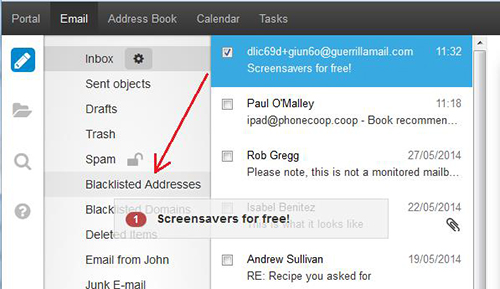
Blacklisting is a way of stopping emails from a given address or domain from reaching your inbox, it’s a useful way of blocking nuisance emails from a given address. To do this simply go to www.suffolkonline.net and click on webmail along the top. Once you are on our webmail page, type in your full email address and email password and then from here you will be control your spam emails. From here you simply drag and drop the email in question over to the Blacklisted Addresses folder. If you want to block all emails from that domain drag the email in to the Blacklisted Domains folder.
Whitelisting
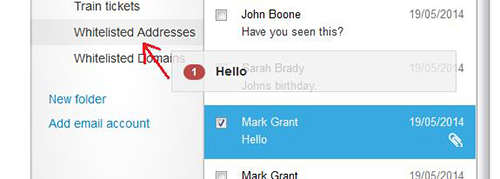
As the name suggests whitelisting is the opposite of blacklisting. If you are having issues with email from a particular address showing up in your spam folder instead of your inbox, you can drag an email from this account or domain into the Whitelisted Addresses folder. We would not recommend whitelisting an entire domain. Only add addresses that you trust to your Whitelisted Addresses folder.
The guides below are for setting up a message rule so any subjects that are marked with SPAM can be moved out of your iobox into a spam / junk mail folder. PLEASE NOTE: its always worth checking these folders anyway incase a genuine email has been marked as spam accidently.
Outlook Express:
- Open Outlook Express
- Click on Tools
- Click on Message Rules
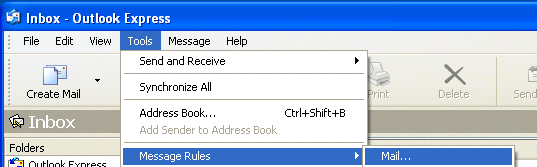
- Click on Mail
- In Box 1 Click in “Where the Subject lines contains words”
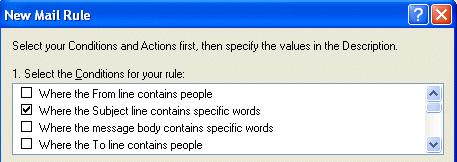
- In Box 2 Click in “Move it to the specified folder”
- In Box 3 click on Contains specific words
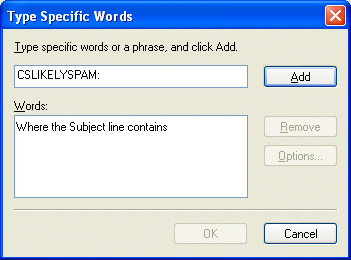
- Type in Spam in the box and click “Add”. Click OK
- In Box 3 click on “specified”
- Highlight the deleted items folder and click OK
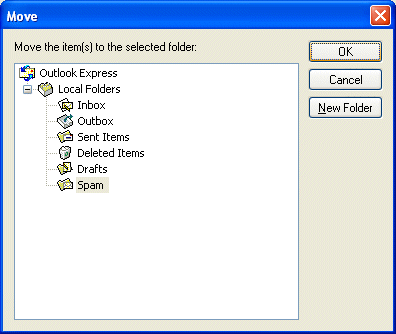
- Click OK
- Click Apply Now
- Click Apply Now again
- Click OK & then Close any further boxes
Microsoft Outlook:
- Open Outlook Express
- Click on the Inbox folder
- Click on Tools
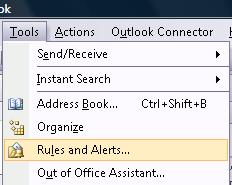
- Click on Rules & Alerts
- Click on New Rule
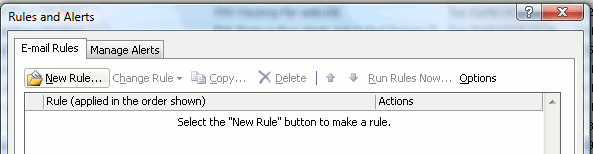
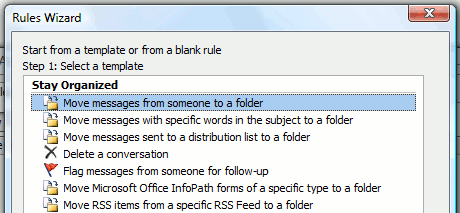
- In the Step 1 box – Click on “Move Messages with specific words in the subject to a folder”
- In the Step 2 box – Click on the “specific words” link

- Type in SPAM in the box on the screen
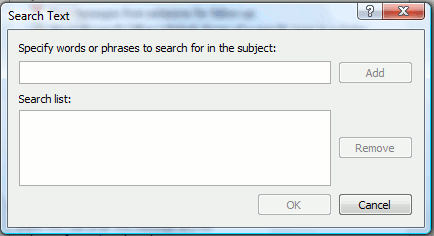
- Click Add
- Click OK
- In the Step 2 box – Click on the “specified ” link
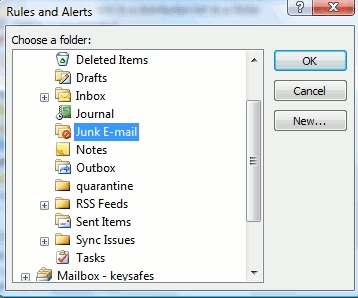
- Highlight the Junk E-mail folder and click OK
- Click next 3 times
- On the final screen ensure that “Turn on this rule” is ticked and “Run this rule now on messages already in inbox” is ticked.
- Click Finish and then OK
Windows Mail
- Open Outlook Express
- Click on Tools
- Click on Message Rules
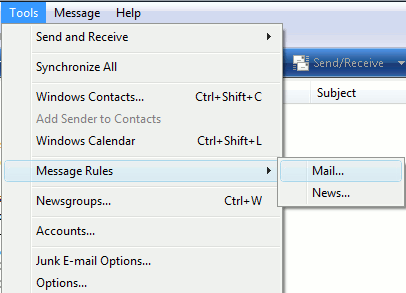
- Click on Mail
- Click in “Where the Subject lines contains words”
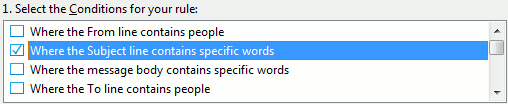
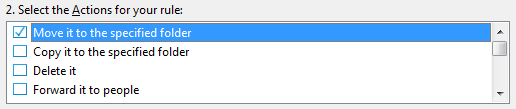
- In Box 2 Click in “Move it to the specified folder”
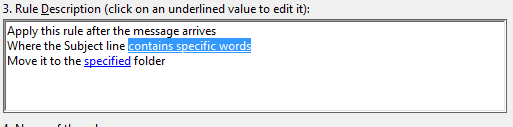
- In Box 3 click “contains specific words” Type in Spam in the box and click “Add”.
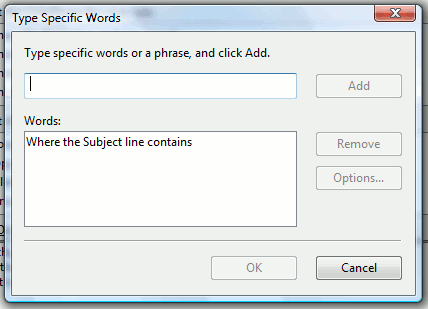
- Click OK
- In Box 3 click on “specified”
- Highlight the Junk E-Mail folder and click OK (on here you may need to double click on local folders if you don’t see deleted items)
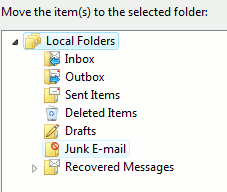
- Click OK
- In Box 4 give the message rule a name, Something like SPAM rule. Just incase you may set up other message rules in future.
- Click ok again
Windows Live Mail 2011
1. Click the folders tab along the top menu as show below. Then Select Message Rules along the right hand side.

2. You will then see a box appear and Click in “Where the Subject lines contains words”
3. In Box 2 Click in “Move it to the specified folder”
4. In Box 3 click “contains specific words” Type in Spam in the box and click “Add”.
5. Click ok and now any messages marked as spam should then go into a spam folder.
If you find you are still having issues or need help please call the helpdesk and someone will be happy to help you out with this.